lnp · linux note pad
All your notes.
None of your screen.
Linux Note Pad holds as many plain-text notes as you like, three levels deep — notebooks down one side, notes across the top, and collections above them both when one rail is no longer enough. It lives in the tray. One keystroke pops the pad, one puts it away, and while it is away it takes no screen space at all.
$ sudo apt install ./lnp.deb
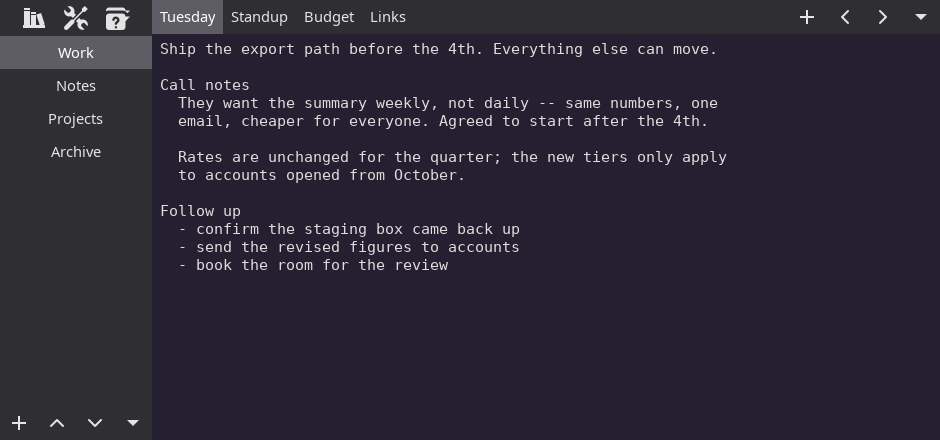
notebooks down the side, notes across the top — and nothing else in the way
the whole point
Sticky notes solve the right problem the wrong way.
Fast, always-there scratch capture is worth having. Papering your desktop with it is not. Linux Note Pad keeps the immediacy and gives back the screen: a resident daemon holds your notes in memory, and the window appears only when you ask for it. There are three ways to ask.
One key, both ways
Bind lnp --toggle in your desktop's Keyboard settings. It shows the pad if it is hidden and hides it if it is showing. The app never grabs a key out from under your desktop — the binding stays yours, in the place you already manage bindings.
System tray
An indicator sits in your panel: show or hide, open the trash, export everything, reach preferences, quit. It stays deliberately small — it is how you reach the app, not how you navigate inside it. Tint its outline to suit your panel.

Command line
lnp --new "call back" captures a thought without your hands leaving the keyboard; it takes a name, a notebook, or standard input. --list prints your notebooks and notes, --export writes the lot out as .txt files.
collections
A third level, for when one rail is not enough.
Notes sit in notebooks; notebooks sit in a collection. You work in one collection at a time, so the rail stays as short as the job in front of you — which is the whole point. A dozen notebooks and finding one becomes the thing you spend your time on, and that is exactly the clutter this pad exists to remove.
Switch with the books button in the corner of the pad; the collection you are in is named in the title bar, so you always know whose notebooks you are looking at before you start typing. Nothing on disk moves when you reorganize — a collection is a level in the index and nothing more, so moving a notebook between them is a rename, not a file copy, and cannot cost you a note.
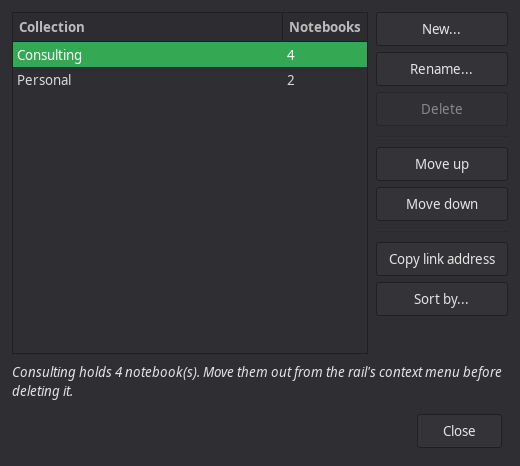
the manager — the only place that shows every collection at once
links
One note, pointing at another.
Put a name in square brackets and it becomes a link. Ctrl+Return follows the one under your cursor; Alt+Left and Alt+Right walk your history the way a browser does.
Nothing is written to make this work. A link is ordinary text in an ordinary .txt file — the feature has no write path at all, so it cannot cost you a byte. Brackets that were never meant as links are left alone.
You rarely type one out. Copy link address on any right-click menu puts the thing you clicked on the clipboard, written out in full and ready to paste — a note, a notebook, a collection, or a [#marker] so the link lands on that exact spot.
[Home::Groceries] resolves — a note in another notebook[Budget@rates] resolves — and lands on the marker inside it[Work::Nowhere] named something and found nothing[TODO] never claimed to be a link; left as prose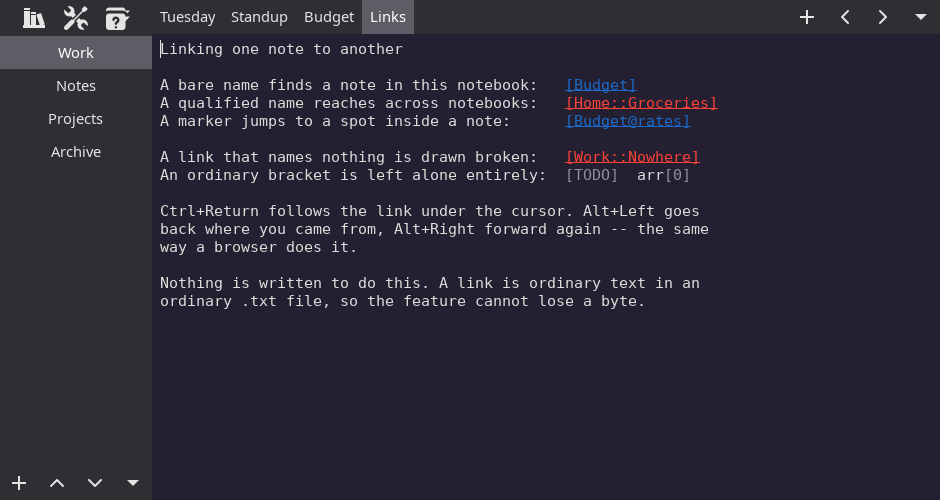
live in blue, broken in red, prose left as prose
find
This note, this notebook, this collection, or everything you have.
The find bar slides up from the bottom with four scopes, the widest reaching across every collection at once. Widen it and the results become a list of notes, each with its match count and a preview — pick one and the pad opens it on the match, switching collections under you if that is where it lives. Phrase, all-words or any-word, with whole-words and match-case where you need them.
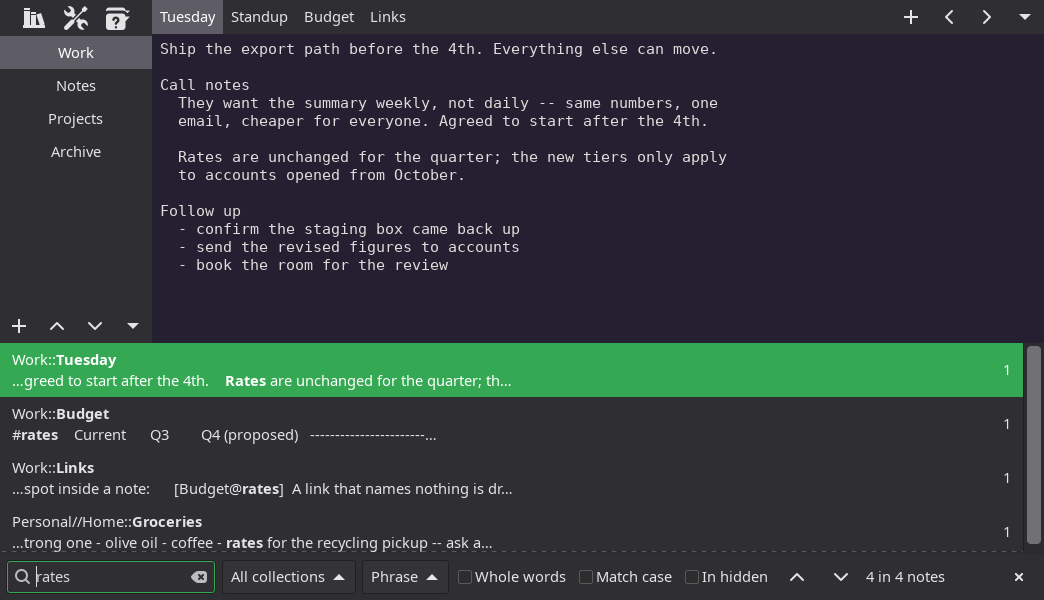
search across every collection — results by full name, with counts and previews
your notes are files
Plain text, on your disk, readable without this app.
Every note is a .txt file in your own data directory. No database, no sync service, no account, no format to be locked into. If Linux Note Pad vanished tomorrow your notes would still open in any editor you own.
Identity loss is recoverable. Data loss is the unpardonable sin. The rule the file handling is built around. When a design choice trades one against the other, the bytes win over the name, the order, and the placement — which is why renaming and reordering never touch the filesystem, why every write that matters is atomic, why deleting goes to a trash you can undo, and why export exists.
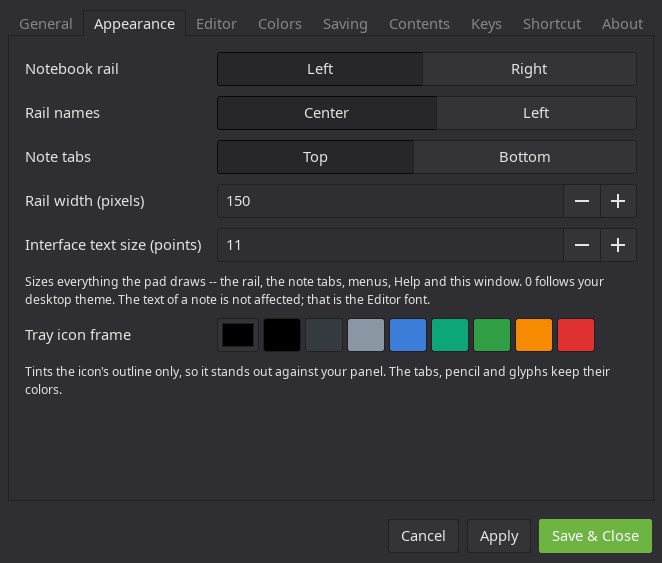
preferences — or edit the TOML by hand; your comments survive
make it yours
Put the strips where you want them.
The notebook rail goes left or right, the note tabs top or bottom, and both remember their width. Set the note font and the interface font separately, pick your own paper and ink, and rebind every accelerator in the app.
All of it lives in one commented config.toml you are welcome to edit by hand — the preferences window writes around your comments rather than over them, and the app picks up the change without a restart.
install
One .deb, then apt.
Download the package and hand it to apt — GTK 3, the indicator bindings and the rest are pulled in automatically.
$ curl -O https://smisco.biz/lnp/lnp.deb
$ sudo apt install ./lnp.deb
Then bind your key. Open your desktop's Keyboard settings and give a custom shortcut the command lnp --toggle. That one key is the whole interface when the pad is hidden — and pressing it with nothing running starts the daemon and shows the pad in one go.
Requirements. A GTK 3 desktop with a system tray. Built and tested on Linux Mint / Cinnamon; other desktops generally work. Linux Note Pad depends on no display server of its own, so it is expected to run under Wayland — that is untested rather than promised.